
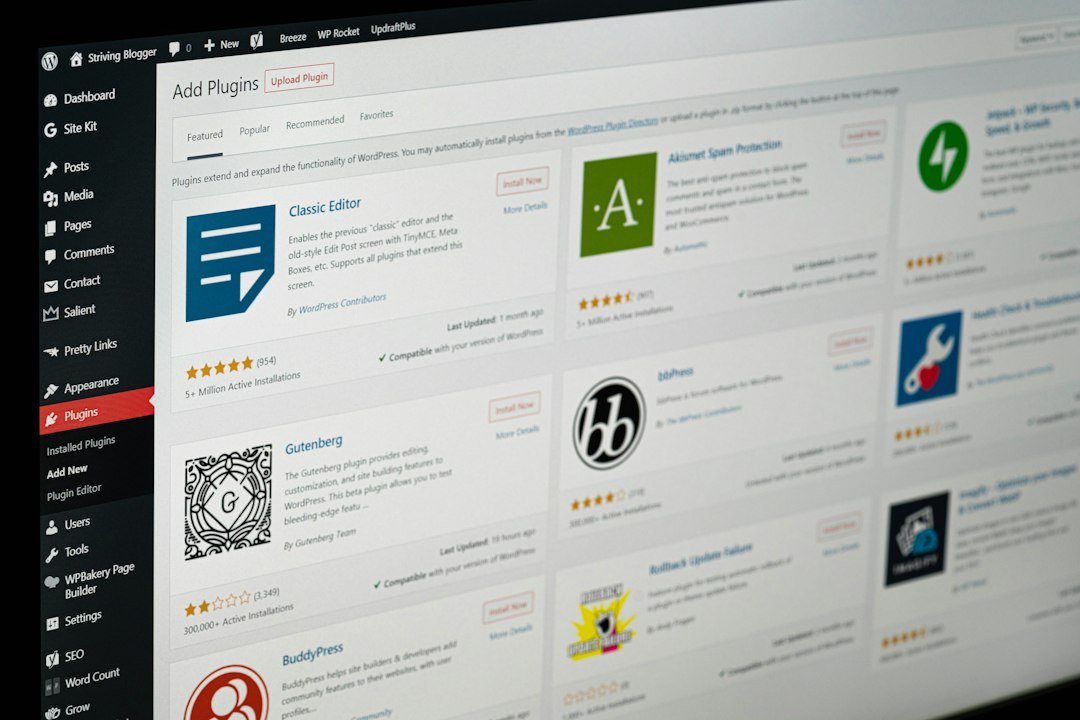
A new WordPress site does not need 40 plugins. It needs a small stack that covers SEO, security, backups, speed, forms, email, images, spam, analytics, and login safety. This is the list we start from at 7 Sync Technologies when we set up must-have WordPress plugins for a brochure site, a blog, or a company site.
Install one plugin per job. Two firewalls, two SEO plugins, or two backup tools will fight each other and slow the admin. Update everything on staging first. If a plugin has not been updated in a year, skip it.
1. Rank Math SEO
Search engines still need titles, descriptions, sitemaps, and schema. Rank Math does that in one plugin: XML sitemaps, breadcrumbs, redirects, and per-post focus keywords. Yoast is the other solid option. Do not run both.
Set a focus keyword on every public post and page. Leave utility pages (thank-you, verification, HTML sitemaps) on noindex. Connect Google Search Console when you can. For a recap of how WordPress itself is exposing AI to agents, see AI implementation on WordPress.
2. Wordfence Security
You want a firewall, a malware scan, and login protection. Wordfence is the default we use. Enable two-factor for administrators. If you also use Application Passwords (needed for AI tools and many APIs), do not leave “Disable WordPress application passwords” checked in Brute Force Protection or those connections will fail.
Do not stack Wordfence with Sucuri, All-In-One Security, and another WAF on the same site unless you have a reason. One security plugin, kept updated, is enough for most sites.
3. UpdraftPlus (backups)
A plugin update, a bad theme edit, or a hacked file is recoverable only if you have a backup you have actually restored once. UpdraftPlus is free for scheduled backups to Google Drive, Dropbox, or S3. Run a weekly full backup and a daily database backup. Test a restore on staging before you need it on production.
4. LiteSpeed Cache (or WP Super Cache)
Core WordPress does not cache pages. If the host is LiteSpeed or OpenLiteSpeed, use LiteSpeed Cache. If not, use WP Super Cache or a host cache (SiteGround, Kinsta, WP Engine). WP Rocket is fine if the client will pay for it.
Turn on page cache first. Minify and delay JavaScript only after you check the cart, forms, and admin bar. Cache plugins break more sites than they save when every toggle is on.
5. WP Mail SMTP
Contact forms and password resets fail silently when the server cannot send mail. WP Mail SMTP sends through a real provider (Google, Microsoft 365, Amazon SES, or your host SMTP). Send a test mail the day you launch. If the test never arrives, the form is useless.
6. ShortPixel Image Optimizer
Uncompressed camera images are the usual reason a homepage is slow. ShortPixel compresses new uploads and can bulk-optimize the media library. Imagify and Smush are alternatives. Serve WebP when the plugin offers it. Do not run two image optimizers at once.
7. Contact Form 7
Every site needs a way to get in touch. Contact Form 7 is free, stable, and enough for a name, email, and message field. Fluent Forms or WPForms if the client needs multi-step forms or payments. Add a honeypot or a simple spam filter. Pair it with WP Mail SMTP so submissions actually land in the inbox.
8. Akismet Anti-spam
If comments are open, spam will arrive. Akismet is still the cleanest way to catch it. Hold comments for moderation on a new site. Close comments on posts older than 30 days if you do not need the discussion. Personal memorial posts and old threads are magnet for bots; Akismet plus moderation is cheaper than cleaning 20 pending comments by hand.
9. Site Kit by Google
Site Kit connects Search Console and Analytics without a tangle of extra snippets. Use it to see which posts get clicks, not as a replacement for Rank Math. If the client already has Analytics via GTM, do not add a second gtag from Site Kit.
10. Two-Factor (WordPress.org)
Stolen passwords are still how most small sites get taken over. The official Two-Factor plugin (or Wordfence’s 2FA) should be on for every Administrator and Editor. App-based codes beat SMS. Keep recovery codes in a password manager, not in email.
What we do not put on every site
- Page builders — Elementor, Gutenberg extras, or a classic theme, pick one. See what is new in Elementor in 2026 if you are already on Elementor.
- WooCommerce — only if you sell.
- Slider plugins — a static hero is faster.
- Social auto-post bots — they go stale and leak API keys.
- Inactive leftovers — delete plugins you do not use. Inactive code still sits on disk.
How we install this stack at 7 Sync Technologies
On a new site we install these ten, take an UpdraftPlus backup, turn on Wordfence 2FA, send a WP Mail SMTP test, and only then add the theme and content. On an existing site we inventory what is already doing the same job, then replace, do not duplicate. More WordPress notes live in the WordPress category.
If you want this stack reviewed on a live site, use the contact page.
Quick checklist
- Rank Math (or Yoast), never both
- One security plugin, 2FA on for admins
- Scheduled off-site backups you have restored once
- Page cache that matches the host
- SMTP test mail received
- New uploads compressed to WebP
- One contact form with spam protection
- Akismet if comments are open
- Analytics in one place only
- Delete unused plugins after a backup
That is a practical set of must-have WordPress plugins for any website in 2026: ten jobs, ten plugins, and nothing that fights the rest of the stack.
Featured photo: Justin Morgan on Unsplash.


Recent Comments